
Managing disk partitions on Windows used to require either technical expertise or a trip into the built-in Disk Management tool, which has real limits. AOMEI Partition Assistant changes that. It gives you a full set of partition management tools inside one interface, and you do not need a computer science background to use it. Whether you are resizing a partition that ran out of space, cloning a drive before an upgrade, or recovering a partition you accidentally deleted, AOMEI Partition Assistant covers it. This review walks through what the software actually does, who it works best for, and where it falls short.
What Is AOMEI Partition Assistant?
AOMEI Partition Assistant is a disk and partition management tool developed by AOMEI Technology, a company that has been building Windows storage utilities since 2009. The software runs on Windows 11, 10, 8, and 7, and it works with hard disk drives, solid-state drives, USB drives, and SD cards. AOMEI offers the tool in several editions: Standard (free), Professional, Server, Technician, and Unlimited. The free Standard edition covers basic tasks for personal use, while the paid tiers add features like partition recovery, SSD alignment, and command-line support.
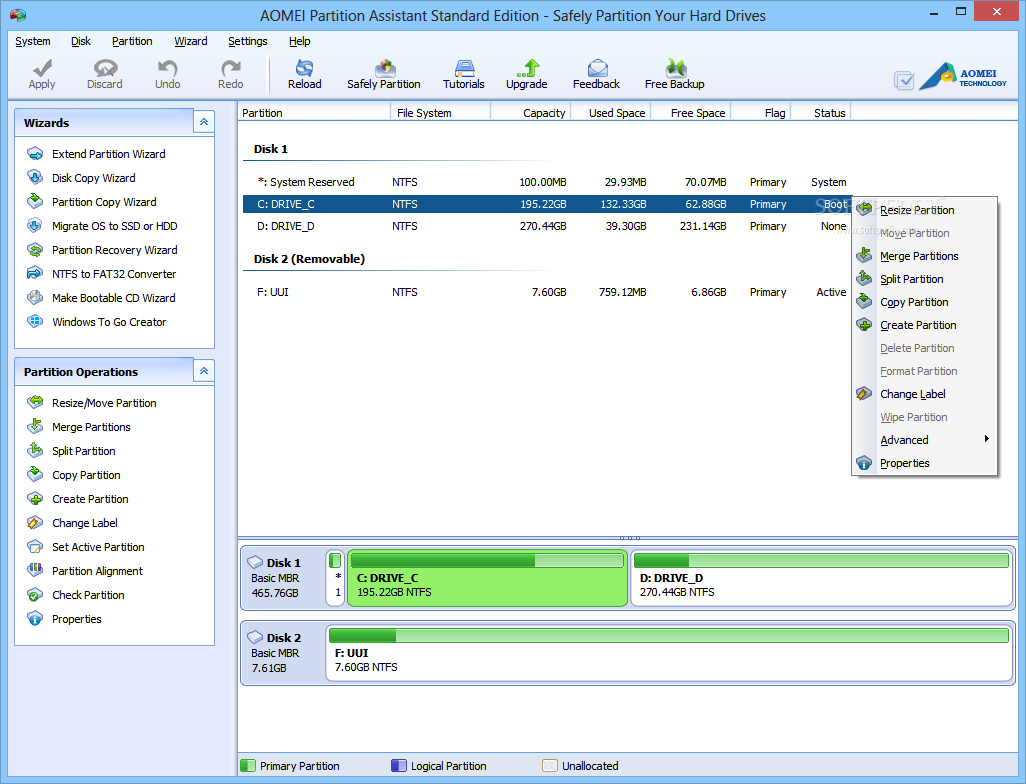
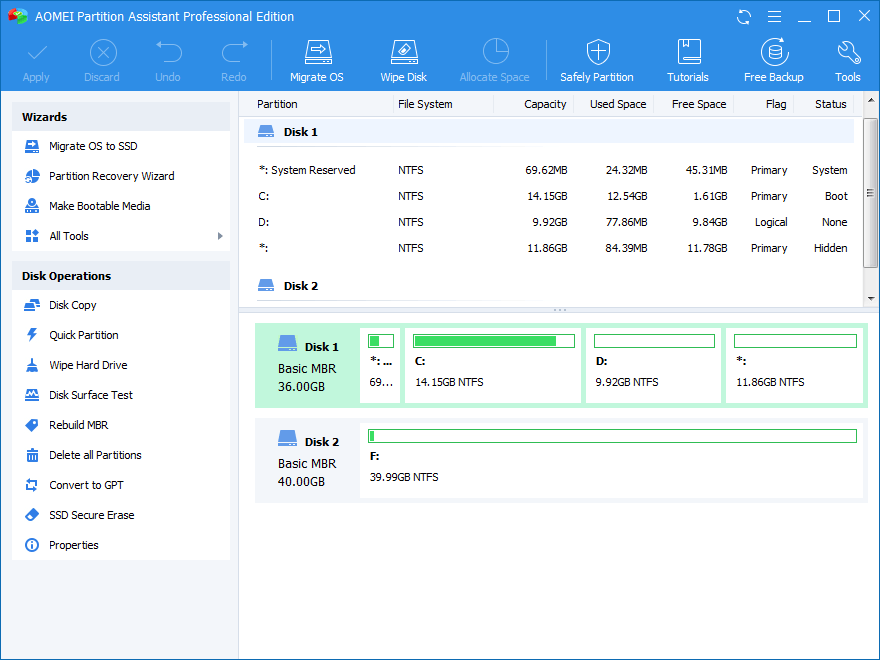
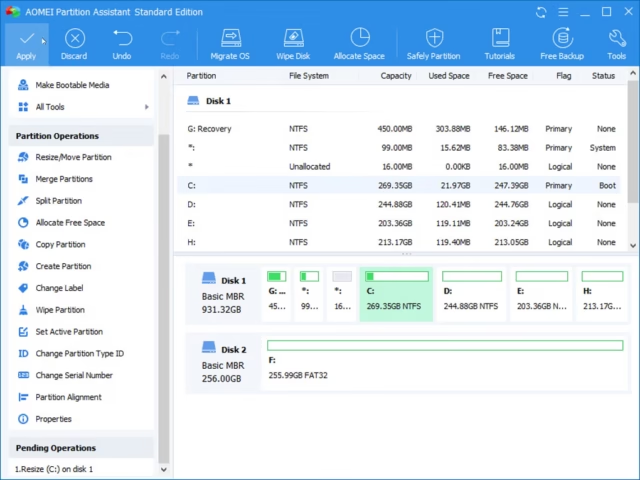
The interface displays your disks and partitions as a visual bar chart at the bottom of the screen, similar to how Windows Disk Management presents drives, but with far more options accessible directly from right-click menus and the left sidebar. You can see all connected drives at once, including their sizes, file systems, and free space, without needing to switch between windows.
AOMEI Partition Assistant is widely used by IT administrators, small business owners, and home users who need more control over their storage than Windows provides by default. A common real-world use case is resizing a C: drive that is nearly full on a laptop that came with a single large partition, which Disk Management often cannot do without deleting data.
Core Features of AOMEI Partition Assistant
Partition Resizing and Moving
Resizing partitions is one of the most frequently used features in AOMEI Partition Assistant. You can extend or shrink any partition by dragging its boundary in the graphical interface or by entering an exact size in megabytes. The tool lets you take unallocated space from one area of a disk and add it to a partition that needs room, even if the unallocated space is not directly adjacent. This is something Windows Disk Management cannot do without third-party tools.
For example, if your D: drive has 50 GB of free space and your C: drive is nearly full, AOMEI can merge that free space into your system partition. The operation runs after a restart for system partitions, and AOMEI handles the process in a pre-Windows environment to avoid conflicts. You do not lose data in the process when the operation is set up correctly.
Disk Cloning
AOMEI Partition Assistant includes a disk clone feature that copies an entire drive to another disk, sector by sector or file by file. This is useful when you are upgrading a mechanical hard drive to an SSD and want to keep your operating system, applications, and files exactly as they are. The clone takes a full copy and makes it bootable on the target drive.
The software also offers partition cloning, which lets you copy a single partition to another location. If you are moving user data from one drive to another or duplicating a partition for testing, partition clone handles it without requiring you to back up and restore manually. Disk cloning is available in the Professional edition and above.
OS Migration to SSD
Migrating your operating system to a new SSD without reinstalling Windows is one of the more technically involved tasks a home user can attempt. AOMEI Partition Assistant simplifies this into a guided wizard. You select your source OS partition, choose the target SSD, and the software handles the transfer. The process takes anywhere from 20 minutes to over an hour depending on how much data is on the system partition.
This feature works well for users who bought a new SSD for their laptop or desktop and want to avoid the full Windows reinstallation process, including reinstalling software and reconfiguring settings. After migration, you boot from the SSD by changing the boot order in BIOS, and the system starts up as normal, just faster.
Partition Recovery
AOMEI Partition Assistant Professional includes a partition recovery tool that scans your disk for deleted or lost partitions and restores them. If you formatted the wrong drive or accidentally deleted a partition, this tool gives you a real chance of getting the data back, provided you have not written significant new data to the disk since the loss occurred.
The scan can take 30 minutes or more on large drives, but the results are displayed with partition details including size, file system, and estimated recoverable files before you commit to restoring anything. This feature alone justifies the Professional upgrade for users who store important data on secondary drives without a backup in place.
Convert File Systems Without Formatting
AOMEI Partition Assistant can convert partitions between NTFS and FAT32 file systems without deleting the data on them. This matters when you have a drive formatted as FAT32 that cannot hold files larger than 4 GB, and you need to upgrade it to NTFS to support larger files. Normally that conversion would require a format, which means erasing everything first.
The same applies to converting MBR disks to GPT, which is needed if you want to use a drive larger than 2 TB or if your system requires GPT for UEFI booting. AOMEI handles both conversions without data loss, and the operation typically completes in under a minute for file system changes on smaller drives.
Bootable Media Creation
AOMEI Partition Assistant lets you create a bootable USB drive or ISO that runs the software outside of Windows. This is useful when your system drive has issues and Windows cannot start normally. You boot from the USB, and AOMEI Partition Assistant opens in a Windows PE environment where you can manage partitions, recover data, or clone drives without loading the operating system on the damaged disk.
Creating bootable media takes about 5 to 10 minutes depending on the USB drive speed. The result is a portable recovery tool you can keep on hand for system emergencies. For IT professionals managing multiple machines, this feature alone makes the Technician edition a practical investment.
Real-World Experience
Using AOMEI Partition Assistant on a daily basis, the interface is clean and the main operations are easy to find. Resizing a partition takes three clicks: right-click the partition, select Resize/Move, drag the boundary, and confirm. Operations are queued and executed together, so you can plan multiple changes and apply them all at once instead of restarting between each step.
One area where the software is slower than expected is the partition recovery scan on large HDDs. A 2 TB drive can take 45 minutes to an hour for a full scan. The progress bar moves, but there is no estimate of time remaining, which makes it hard to know if the scan stalled. That is a usability gap worth noting. Outside of recovery, most partition operations on SSDs complete in well under 5 minutes.
Conclusion
AOMEI Partition Assistant is a reliable, capable tool for anyone who manages Windows storage beyond what the built-in Disk Management offers. The free Standard edition is genuinely useful for basic tasks like resizing and formatting. The Professional edition at around $39.95 adds the features that matter most in real-world situations: partition recovery, disk cloning, and OS migration. If you manage multiple machines professionally, the Technician edition covers unlimited PCs and includes the bootable media tools that make on-site repair work faster. For personal use or small business setups, AOMEI Partition Assistant handles partition work without requiring a specialist.
AOMEI Partition Assistant System Requirements
| Component | Minimum Requirement | Recommended Requirement |
|---|---|---|
| Operating System | Windows 7 (32/64-bit) | Windows 10 or Windows 11 (64-bit) |
| Processor (CPU) | 1 GHz single-core processor | 2+ GHz multi-core processor (Intel Core i5 or AMD Ryzen 5) |
| RAM | 512 MB | 4 GB or more |
| Storage | 100 MB free disk space | 500 MB free disk space on SSD |
| Graphics | Standard display adapter with 800 x 600 resolution | Dedicated GPU with 1920 x 1080 display support |
| Display Resolution | 800 x 600 | 1920 x 1080 or higher |
| Internet | Required for license activation and software updates | Stable broadband connection for cloud features and live support |