
If you watch a lot of YouTube videos, you already know the frustration. You find something worth keeping, a tutorial, a music set, a documentary, and the next time you look for it, it is gone or region-locked. MediaHuman YouTube Downloader solves that problem without asking you to deal with sketchy websites, pop-up ads, or command-line tools. It is a clean desktop application for Windows and macOS that pulls videos directly to your computer in the quality and format you choose. Millions of users have trusted it since its original release, and it has maintained a consistent reputation for reliability. If you want an honest look at what it does, what it does well, and where its limits are, this article covers all of it.
What Is MediaHuman YouTube Downloader?
MediaHuman YouTube Downloader is a free desktop application developed by MediaHuman, a small software company that also makes tools like Audio Converter and Lyrics Finder. The YouTube Downloader is their most popular product and has been in active development for over a decade. It runs on Windows 10 and later as well as macOS 10.13 and above, which makes it one of the few downloaders that works properly on both platforms without a separate version for each.
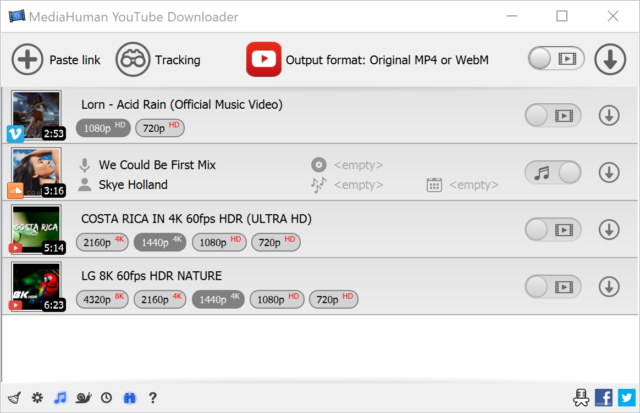
The core function is simple. You paste a video URL into the app, select your preferred format and quality, and click download. The file saves to a folder on your computer. There is no browser extension required, no account to create, and no limit on how many videos you can queue. For users who download content regularly, the batch download feature is where most of the time savings come from. You can paste an entire playlist URL and the app processes every video in it automatically.
Core Features of MediaHuman YouTube Downloader
Multi-Platform and Multi-Source Support
MediaHuman YouTube Downloader works with more than just YouTube. You can download from Vimeo, SoundCloud, Facebook, Instagram, Dailymotion, and several other platforms using the same interface. The process is identical regardless of the source: paste the URL, pick your settings, and download. This matters if you regularly save content from different platforms and do not want a separate tool for each one. For content creators who research across multiple video sites, having a single reliable downloader simplifies the workflow considerably.
Resolution and Format Selection
Before any download starts, you choose your output format and resolution. The app supports MP4, MKV, FLV, WebM, and 3GP for video. For audio, you can extract the sound track and save it as MP3, M4A, OGG, or WAV. Resolution options go up to 8K where the source supports it, and 1080p and 4K downloads are available for most standard YouTube uploads. If you are saving a music video and only need the audio, you select MP3, set the bitrate to 320 kbps, and the app extracts and saves just the audio file. That process takes about 30 seconds for a typical 4-minute song.
Playlist and Channel Downloads
This is where MediaHuman YouTube Downloader separates itself from basic web-based tools. You can paste the URL of a full YouTube playlist or a channel page, and the application queues every video it finds. For a playlist of 50 videos, it downloads each one in sequence without you touching anything after the initial paste. You can also set it to download only new uploads from a channel by checking it periodically, which is useful if you follow a creator whose videos you want to archive. Podcasters, educators, and researchers use this feature regularly to build offline libraries of content they rely on.
Subtitle Download
MediaHuman YouTube Downloader includes an option to download subtitles alongside the video. You can choose auto-generated captions or manually uploaded subtitle files if the creator has provided them. The subtitles save as separate SRT files that any video player recognizes. This is genuinely useful if you are downloading content in a second language and want to study it offline, or if you need captions for accessibility purposes. A language learner downloading French news segments, for example, gets the video and the transcript in one step rather than copying captions manually.
Automatic Post-Download Conversion
After downloading, MediaHuman YouTube Downloader can automatically convert the file to a format you specify using a built-in conversion step. If you download a video in its native WebM format but need an MP4 for a specific device or editing software, you set the conversion target in preferences and the app handles it without any extra steps from you. The conversion uses FFmpeg in the background. You do not need to install or configure FFmpeg separately. It comes bundled with the application installer and works silently after setup.
Scheduled and Background Downloads
You can queue downloads and leave them running in the background while you work on other things. The app sits in your system tray and processes the queue without a visible window. If you have a slow internet connection and prefer downloading overnight, the queue holds everything until you are ready. There is no automatic scheduling by time of day built into the free version, but the ability to queue 20 or 30 videos, minimize the app, and come back to finished files is a workflow that most regular users rely on from the first week of use.
Real-World Experience Using MediaHuman YouTube Downloader
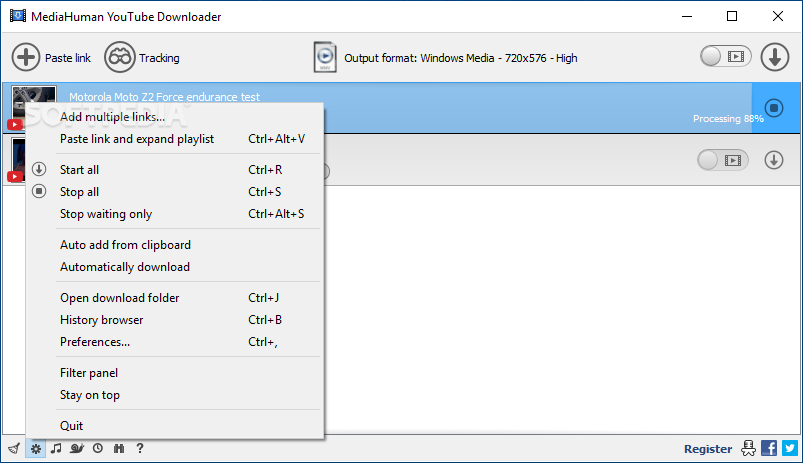
Using the app daily for content archiving makes a few things clear quickly. The interface does not feel cluttered. You paste, you pick quality, you click the download button. The application handles the rest. Error messages are straightforward when something does not work, usually pointing to a changed URL or an age-restricted video that requires login credentials. The settings panel gives you control over default quality, naming conventions for saved files, and the download folder location without burying those options in sub-menus.
One practical limitation worth knowing: age-restricted or member-only content requires you to log in with a YouTube account through the app’s cookie-based authentication. This adds a few extra steps the first time but works reliably once configured. For standard public videos, you will almost never encounter a download failure on a working internet connection. The app handles throttling from YouTube better than most alternatives, and download speeds on a 100 Mbps connection are typically capped only by the source server, not by the application itself.
Conclusion
MediaHuman YouTube Downloader does what it says, consistently, on both Windows and macOS. It is free for basic use, and the paid version removes the three-simultaneous-download limit and adds a few additional format options. For most individuals, the free version is enough. If you download content in batches regularly, the paid tier at around $19 for a lifetime license is reasonable. The tool is not trying to do more than it should, and that restraint is part of why it has stayed useful over a decade of platform changes and YouTube policy updates. If you need a reliable, offline video downloader you can set up in under five minutes, this is a solid choice.
MediaHuman YouTube Downloader System Requirements
| Component | Minimum Requirement | Recommended Requirement |
|---|---|---|
| Operating System | Windows 10 (64-bit) or macOS 10.13 High Sierra | Windows 11 (64-bit) or macOS 13 Ventura and above |
| Processor (CPU) | 1.5 GHz dual-core processor | 2.5 GHz quad-core processor (Intel Core i5 or AMD Ryzen 5) |
| RAM | 2 GB | 8 GB or more |
| Storage | 200 MB free disk space for installation | SSD with 10+ GB free space for downloaded media files |
| Graphics | Any display adapter supporting 1024 x 768 | Any modern GPU for smooth 4K video playback after download |
| Display Resolution | 1024 x 768 | 1920 x 1080 or higher |
| Internet | Required for all downloads and activation | Broadband connection of 25 Mbps or faster for 4K downloads |