
If you work in IT, software development, cybersecurity, or system administration, you have likely run into situations where you needed to run multiple operating systems on a single machine at the same time. VMware Workstation Pro is built for exactly that. It lets you create and run virtual machines on a Windows or Linux host, each with its own full OS, dedicated resources, and an isolated environment. The software has been around for decades, and Broadcom, which acquired VMware in 2023, has made it free for personal use as of 2024. That decision alone makes it worth a serious look if you have not used it before, or if you stopped using it when it carried a price tag above $200.
What Is VMware Workstation Pro?
VMware Workstation Pro is a Type 2 hypervisor, which means it runs on top of your existing operating system rather than directly on the hardware. You install it like any other application, open it, and create virtual machines inside it. Each virtual machine behaves like a fully independent computer with its own CPU allocation, RAM, storage, and network adapter. You can run Windows 11, Ubuntu, Kali Linux, macOS (with limitations), and hundreds of other operating systems inside these virtual machines simultaneously.
The software supports both Windows and Linux as host platforms. Broadcom has removed the commercial license requirement for personal use, so you can download and run it at no cost as long as you are not using it for commercial purposes. Commercial users still need a paid license through Broadcom’s portal. The current major version is VMware Workstation Pro 17, which added support for Windows 11 VMs, improved DirectX 11 graphics for virtual machines, and refined the USB 3.1 passthrough feature.
Core Features of VMware Workstation Pro
Snapshot and Clone System
One of the most practical features in VMware Workstation Pro is its snapshot system. You can take a snapshot of a virtual machine at any point in time, capturing the exact state of the OS, installed software, running processes, and files. If something goes wrong after that point, you roll back to the snapshot in seconds. This is extremely useful for software testing. You install an application, test it, then restore the snapshot to get a clean machine for the next test without reinstalling the OS.
Cloning works alongside this. You can create a full clone or a linked clone of an existing VM. A linked clone shares the base disk files with the original, which saves significant storage. A developer testing a web application across three different browser configurations, for example, can clone one base VM three times rather than building three separate VMs from scratch.
Advanced Networking Options
VMware Workstation Pro gives you granular control over how your virtual machines connect to networks. You can configure a VM to use NAT, which routes its network traffic through your host machine’s IP address. You can set it to bridged mode, where the VM gets its own IP address on your physical network as if it were a separate physical machine. Host-only mode creates a private network between your host and the VMs, with no access to external networks.
Beyond those three basics, the software includes a Virtual Network Editor that lets you create custom virtual networks with specific subnets, DHCP settings, and routing rules. Security professionals use this to build realistic lab environments with multiple VMs talking to each other over controlled network topologies, all without touching the production network.
DirectX 11 and OpenGL Support
VMware Workstation Pro supports DirectX 11 and OpenGL 4.3 inside virtual machines. This is a significant improvement over older versions of the software that were limited to DirectX 9. With DirectX 11 support, you can run Windows 11 inside a VM and have basic GPU-accelerated graphics working correctly. Applications that rely on DirectX 11 rendering, such as certain CAD tools and development frameworks, behave correctly inside the VM instead of falling back to software rendering.
You still cannot pass through a dedicated GPU to a VM for full gaming performance without additional configuration, but for development and testing purposes, the DirectX 11 support is sufficient. Running a Unity project build inside a VM to check shader behavior, for instance, now works without switching to the host OS.
VM Sharing and Remote Access
Workstation Pro includes a feature called Shared VMs, which lets you share virtual machines with other users on your local network. You configure a VM to be shared from your machine, and other users running VMware Workstation or VMware Workstation Player can connect to and run that VM remotely. This is useful in small team environments where one machine hosts the VM and multiple people access it for testing or training without each person needing their own copy of the VM files.
Remote connections use the VNC-compatible VMware Remote Console protocol. The connection is stable on a local network, though you should not expect smooth performance over a slow WAN connection for anything beyond basic console access.
USB and Device Passthrough
VMware Workstation Pro supports USB passthrough, including USB 3.1 devices. You can connect a USB drive, a hardware security key, or a USB-connected microcontroller to your host machine and pass it directly through to a VM. The VM treats the device as if it is physically connected to it. This matters for developers doing firmware development or embedded systems work who need a specific OS environment but also need physical hardware access.
The passthrough configuration is handled through the VM settings menu, where you select the connected USB devices you want to route to the VM. You can set a device to automatically connect whenever it is plugged in while a particular VM is running, which removes the manual step of reassigning the device each time.
Encrypted Virtual Machines
You can apply 256-bit AES encryption to individual virtual machines. An encrypted VM requires a password before it can be powered on, and the VM’s disk files are stored encrypted on your host system. If someone copies the VM’s files from your drive, they cannot use them without the correct password. This matters for VMs that contain sensitive data, proprietary software environments, or client files. IT teams that share VMs between staff members use this feature to ensure that only authorized people can access specific machine configurations.
Real-World User Experience
In day-to-day use, VMware Workstation Pro runs well on modern hardware. On a machine with 32 GB of RAM and an 8-core CPU, running three VMs simultaneously with 4 GB RAM and 2 vCPUs each produces smooth performance for most office, development, and testing workloads. The VM starts in under 30 seconds from a powered-off state on an SSD-based host. Snapshot creation for a 40 GB VM takes roughly 10 to 20 seconds depending on disk speed.
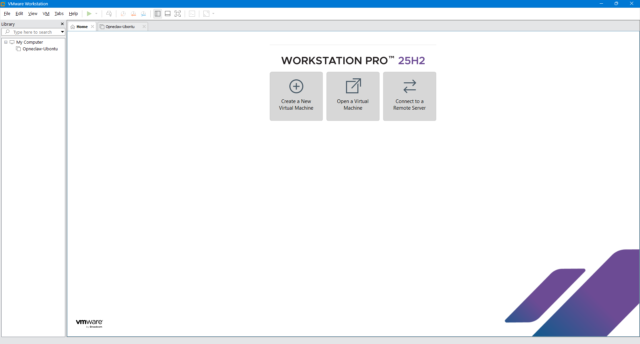
The interface is functional but not particularly modern. It has not seen a significant design update in several years. Everything is accessible, and the configuration dialogs are detailed and well-organized, but the UI feels dated compared to tools like Parallels Desktop on macOS. That is a minor issue for most users. You are using the software to run virtual machines, and the VM performance and reliability are what matter most. On those counts, Workstation Pro delivers consistent results.
Conclusion
VMware Workstation Pro is a mature, reliable virtualization platform that works well for developers, IT professionals, and security researchers who need to run multiple operating systems on a single machine. The decision to make it free for personal use removes the biggest barrier that kept many users on older versions or free alternatives. If you are on Windows or Linux and need a hypervisor with serious networking controls, snapshot management, and broad OS compatibility, VMware Workstation Pro is a practical and well-tested choice.
It is not the right tool for everyone. macOS users have no native version. Users who need GPU passthrough for high-performance graphics workloads will need to look at bare-metal hypervisors. And if your host machine has less than 16 GB of RAM, running multiple VMs simultaneously will hit memory limits quickly. Within its intended use case, though, VMware Workstation Pro handles the job reliably and without the instability that plagues some competing tools.
VMware Workstation Pro System Requirements
| Component | Minimum Requirement | Recommended Requirement |
|---|---|---|
| Operating System | Windows 10 (64-bit) or Linux kernel 4.x | Windows 11 (64-bit) or Linux kernel 5.x and later |
| Processor (CPU) | 1.3 GHz 64-bit processor with virtualization support (Intel VT-x or AMD-V) | 3+ GHz multi-core processor (Intel Core i7/i9 or AMD Ryzen 7/9) |
| RAM | 4 GB (2 GB minimum for host OS plus 2 GB for VMs) | 32 GB or more for running multiple VMs simultaneously |
| Storage | 1.5 GB for installation; additional space per VM (typically 20 to 80 GB) | SSD with 250+ GB free space for smooth VM disk performance |
| Graphics | Any GPU with 512 MB VRAM supporting DirectX 10 | Dedicated GPU with 4+ GB VRAM supporting DirectX 11 or OpenGL 4.3 |
| Display Resolution | 1024 x 768 | 1920 x 1080 or higher for multi-VM window management |
| Internet | Required for license activation and product download | Required for software updates, remote VM access, and Broadcom portal access |