Microsoft has officially released the Windows 11 25H2 ISO file update, which brings a new wave of performance improvements, design changes, and powerful new AI capabilities. Unlike older feature updates, Windows 11 25H2 is quickly installed as a lightweight activation package for devices already running 24H2, meaning users can update with just a single restart.
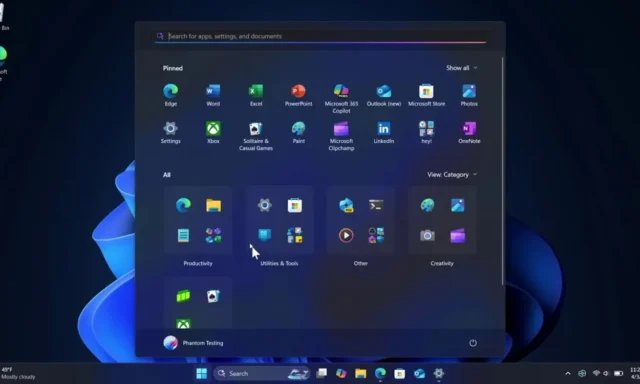
One of the biggest features is the redesigned Start menu, which offers a unified scrolling layout, improved app organization, and the ability to hide the Recommended section for a cleaner look. Productivity is greatly boosted by improved Copilot AI, including Copilot Vision for screen recognition assistance, natural language settings management, and new Click-to-do actions for image editing, summarization, and data extraction. Creative tools like Paint, Photos, and Snipping Tool have been updated with AI-powered features like background removal, retouching, and a built-in color picker.
Windows 11 25H2 also focuses on smarter power management, faster recovery with Quick Machine Recovery, and improved cross-device experiences with Android app integration. Security is stronger than ever with Windows Hello for administrator protection, redesigned permissions dialogs, and expanded password support.
Windows 11 25H2 Features?
1) Upgrade experience (enablement package)
- What it is: If you’re already on 24H2, 25H2 installs as a small “enablement package.”
- Why it matters: Much faster than a full OS upgrade—one reboot, minimal downtime.
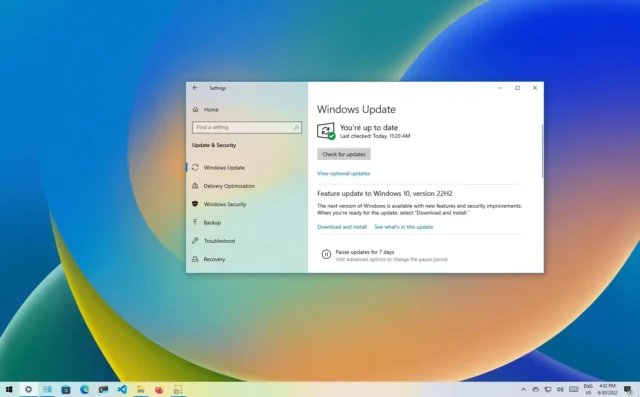
- How to get it: Settings → Windows Update → Get the latest updates as soon as they’re available (toggle on) →
- Check for updates.
- Notes: Some features still roll out gradually via Microsoft Store app updates and Controlled Feature Rollout (CFR), so you may see items arrive in waves.
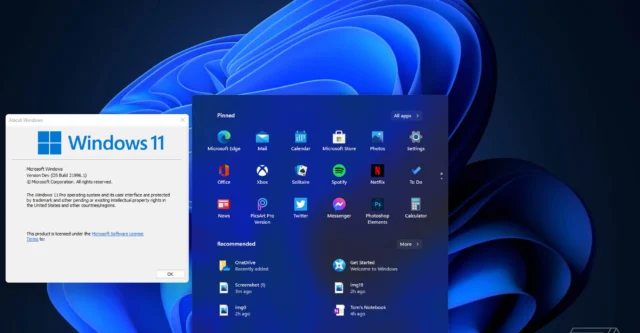
2) Start menu refresh
What’s new:
- Unified app view: Pinned and All apps feel more seamless with a single, scrollable layout.
- Default categories/groups: e.g., Games, Productivity, Social—easier app discovery for new setups.
- Hide Recommended: Option to reduce the “Recommended” surface if you prefer a cleaner Start.
- Customize it:
Settings → Personalization → Start (toggle “Show recommendations” off if available).
You can still drag apps to reorder, right-click to Unpin, or create/rename folders.
3) AI & Copilot upgrades (more on-device, more context)
Many of these shine on Copilot+ PCs (NPU-equipped devices) but also benefit others.
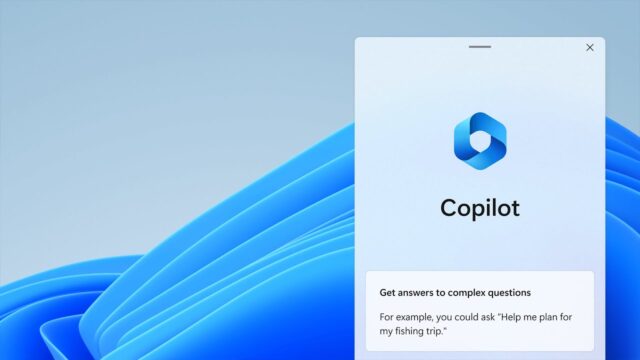
Copilot Vision (screen awareness):
Lets Copilot “see” your current window or page (with your permission) to answer contextually—e.g., “summarize this PDF,” “explain this spreadsheet.” Try it: Open Copilot (Win+C). The first time, allow screen access. Then ask, e.g., “Summarize what’s on my screen.”
AI Settings Agent:
Natural language for system changes: “Connect a Bluetooth headset,” “Turn on night light,” “Make text bigger.” It jumps to the right place or executes directly when safe.
- Click to Do:
Quick actions from what you’re looking at—describe images, clean up backgrounds, extract tables from screenshots into Excel, summarize long text, etc. - Paint & Photos, supercharged:
- Paint: background removal, object selection, sticker/asset overlays, text cleanup; some tools leverage on-device AI.
- Photos: generative fill/erase, relighting, improved object selection, smarter “Background blur,” one-click straightening, and cleanups.
- Snipping Tool upgrades:
- Auto-crop (“perfect screenshot”) to snap the most relevant region.
- Built-in color picker to grab HEX/RGB from the screen.
- Use it: Win+Shift+S → choose mode → after capture, look for the color-picker and edit tools.
- Privacy tips:
- Copilot screen access and content processing are opt-in and controllable.
- Check: Settings → Privacy & security → Copilot & screen capture, Diagnostics & feedback.
4) Recovery & power management
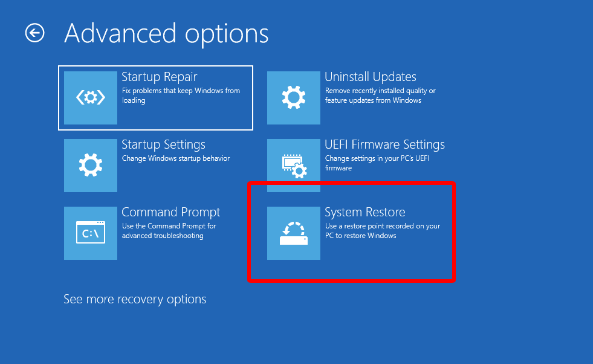
Quick Machine Recovery (QMR):
If Windows detects repeated failed boots or critical startup issues, it automatically enters a guided recovery experience and can pull known-good components from the cloud.
Good to know: Works best with a network connection. You can still use local reset (“Reset this PC”) if offline.
User-interaction-aware power:
Windows better detects idle/active states to throttle CPU/GPU more aggressively during genuine idle, then snap back instantly—translating to meaningful battery gains on laptops.
Adaptive Energy Saver:
A consolidated power-saving mode that tunes display, background activity, and performance based on your usage pattern rather than fixed presets. Find it: Settings → System → Power & battery.
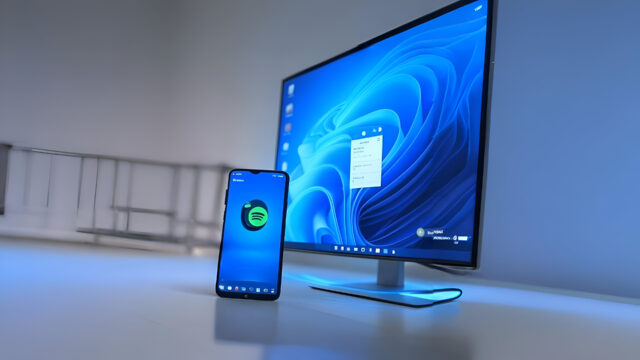
5) Mobile & cross-device flow
Resume Android apps from the taskbar:
When your phone is linked, recent apps appear on your PC for quick relaunch.
Set up: Install Link to Windows on your Android phone → on PC, open Phone Link and pair (same Microsoft account, same Wi-Fi helps).
Use cases: Copy/paste codes, reply to messages, and open the last app you used on your phone directly on PC.
Mobile sidebar in Start (when phone is connected):
A tidy hub for calls, messages, and quick file handoff.
6) UI & usability polish
- File Explorer:
- More consistent dark mode, smoother context menus, and a cleaner Open with dialog.
- Noticeably snappier navigation on large folders.
- Notification Center & clocks:
- System clock and toasts behave better on multi-monitor setups; the seconds display is more consistent.
- Tip: Settings → Personalization → Taskbar → Taskbar behaviors to fine-tune multi-monitor taskbars.
Task Manager:
CPU usage is now more consistent across the Processes, Details, and Performance pages; fewer mismatches when you check spikes.
Settings app (card layout):
Important bits (storage health, account status, Bluetooth, battery) are surfaced as cards on relevant pages. More legacy Control Panel items migrated with clearer search hits.
7) Security & admin controls
Legacy removals:
PowerShell 2.0 (very old, insecure) and WMIC are fully retired to reduce the attack surface. Modern alternatives: PowerShell 7+, WMI via PowerShell/CIM, or Windows Admin Center.
Admin Protection with Windows Hello:
When you perform sensitive admin actions, Windows can require a Windows Hello check (face, fingerprint, PIN) to elevate—reduces token theft risk.
Centered permission dialogs:
Elevation and permission prompts are now centered with a dimmed backdrop—less chance you miss or misclick a critical security prompt.
App housekeeping for IT:
- Broader ability to remove pre-installed Store apps for new users via MDM/Group Policy/provisioning.
- For power users: You can remove provisioned apps for all new users:
- Run PowerShell as admin:
- List: Get-AppxProvisionedPackage -Online | Select DisplayName, PackageName
- Remove (example): Remove-AppxProvisionedPackage -Online -PackageName <PackageName>
- For the current user:
- Get-AppxPackage | Select Name, PackageFullName
- Remove-AppxPackage <PackageFullName>
8) Passkeys & Windows Hello
What it is: Passwordless sign-in using FIDO2 passkeys stored with Windows Hello or a supported manager.
Why it matters: Kills phishing for passwords and most credential-stuffing attacks.
Setup & use:
- Settings → Accounts → Passkeys (manage, view, delete).
- In browsers and apps that support passkeys, choose Use Windows Hello when prompted.
9) Recall (searchable screenshot history) — optional
Available on Copilot+ PCs (NPU required), off by default in some regions/orgs; you control it.
What it does: Periodically captures encrypted snapshots of your screen to build a private, local, searchable timeline—so you can find “that chart I saw last week” by keyword, app name, or visual content.
Controls & privacy:
Settings → Privacy & security → Recall & snapshots: enable/disable globally, pause anytime, set exclusions (apps/sites), and delete all snapshots.
- Data stays local and encrypted; enterprise admins can disable or set policy.
- How to use: Open Recall (from Start or shortcut) → search by words you remember; jump back to the app/state.
10) Support lifecycle reset
- Installing 25H2 starts a fresh support clock:
- Home/Pro: 24 months from your install month.
- Enterprise/Education: 36 months.
- Example: Install in October 2025 → Home/Pro receives security updates through October 2027.
11) Extra goodies & quality-of-life
Dual Bluetooth audio output:
Stream to two devices at once (great for sharing audio).
Requirements: Compatible Bluetooth radios/drivers (often LE Audio/BT 5.3 or vendor-specific).
Where to look: Settings → Bluetooth & devices → Devices or Sound; if your stack supports it, you’ll see a “play to multiple devices” style toggle.
Smarter Windows Search:
Local semantic understanding makes natural-language queries (“show big files from last week,” “open the PDF I edited yesterday”) work better and faster.
Tune it: Settings → Privacy & security → Search permissions (SafeSearch, cloud history), and Settings → Search for indexing options.
Security architecture hardening:
More security components (AV/EDR) operate in user-mode with stricter isolation, reducing kernel hooks and improving stability while preserving protection.
Quick setup & tips (high-impact)
- Turn on “Get the latest updates ASAP” → fastest path to 25H2 features.
- Tame Start: Personalization → Start → hide Recommended (if the toggle has reached you).
- Power & battery: Enable Adaptive Energy Saver; set screen off/hibernate timers you actually like.
- Hello for elevation: Settings → Accounts → Sign-in options → set up Windows Hello (Face/Fingerprint/PIN).
- Phone Link: Pair your Android phone to unlock “resume mobile apps” and fast photo sharing.
- Recall (Copilot+ PCs only): If you want it, enable it, then add exclusions for apps/sites you never want captured.
- Snipping Tool: Memorize Win+Shift+S; try the color picker right after a capture.
- Paint/Photos AI: Open an image → look for Background remove, Erase, or Generative tools to clean or fill
instantly.
Windows 11 25H2 Features Screenshots Preview
Conclusion:
The Windows 11 25H2 update proves that Microsoft is serious about combining modern design, powerful AI features, and user-friendly improvements in a single comprehensive package. From a smarter Start menu and faster File Explorer to advanced Copilot tools, Recall, and improved security protection, this update is more than just cosmetic—it’s designed to improve productivity, creativity, and reliability for everyday users and professionals.
With features like Fast Machine Recovery, Adaptive Power Savings, and cross-device integration, Windows 11 25H2 makes your PC not only smarter but also more productive. Meanwhile, stronger security with passwords and Windows Hello ensures a more secure digital experience in a password-free future.
If you’re already using Windows 11, upgrading to 25H2 is fast and seamless thanks to its lightweight package. In summary, Windows 11 25H2 offers a smarter, faster, and more secure operating system, laying the foundation for the future of AI-powered computing.